

Are you new to managing social media accounts for multiple clients, or perhaps diving into your first campaign with Meta Ads Manager? This article is designed to help you navigate the complexities of Meta’s platforms. Within Meta’s complex landscape, it’s essential to master the Business Suite, Ads Manager, and Business Portfolios. These tools are crucial for effectively managing and maximizing your social media efforts.
Managing several accounts can be daunting, but understanding the distinct features available through Meta will enable you to tailor your strategies to better meet your clients’ needs(and keep everything organized and private!).
What are the Meta Resources?
Meta seems to constantly be updating and adding on new features to help businesses social media strategy. However, it can be quite frustrating when things are moved around, renamed, or you just can’t find it anymore. Let’s breakdown what Meta is currently offering for businesses as of April 2024:
- Meta Business Suite
Meta Business Suite is a comprehensive platform designed by Meta (formerly Facebook) to help businesses manage and optimize their online presence across Meta’s family of apps, including Facebook, Instagram, and Messenger. This tool consolidates various business management features into a single interface, enabling users to schedule and publish posts, interact with their audience, access insights, manage ads, and communicate across all connected platforms efficiently. The suite serves as a central hub for businesses to streamline their social media activities, enhance engagement, and track performance metrics, all from one place.
2. Meta Business Portfolio
Meta Business Portfolio is a feature within Meta’s advertising ecosystem designed to help businesses and advertisers manage multiple ad accounts, pages, and assets across Meta platforms (like Facebook and Instagram) from a single interface. This tool is particularly useful for organizations with multiple brands or large-scale marketing operations, as it allows for streamlined management of resources, roles, and permissions, ensuring cohesive and efficient advertising strategies. The Business Portfolio helps maintain organization and control, providing an overview of all connected assets and facilitating easier shifts between different ad campaigns, initiatives, and team collaborations.
3. Ads Manager
Ads Manager is a robust advertising platform developed by Meta (formerly Facebook) to enable businesses and advertisers to create, manage, and optimize their ad campaigns across Meta’s family of apps, including Facebook, Instagram, Messenger, and Audience Network. This tool provides a centralized dashboard where users can design ad creatives, define target audiences, set budgets and schedules, and track performance metrics in real-time. With Ads Manager, advertisers have access to advanced targeting options, custom audience creation tools, and sophisticated analytics to maximize the effectiveness of their advertising efforts. It serves as a comprehensive solution for businesses looking to reach and engage their target audience through paid advertising on Meta’s platforms.
These three platforms are the most efficient and commonly used resources that Meta offers. When it comes to using the three platforms together, it can become a little confusing, especially when trying to share access to others that may be managing your page(s).
Understanding the Basics of a Business Page
When you create a business page on Facebook, a personal profile is required to start and that personal profile will have full control and access over that page. After your business page is created, you will automatically be able to download and enter Meta Business Suite. From Business Suite you will then be able to link your Instagram account, watch metrics and insights, and schedule content for posting on both your platforms.
When the time comes for you to either have assistance with your social media or hire someone entirely, you can share access with that persons profile through Facebook.
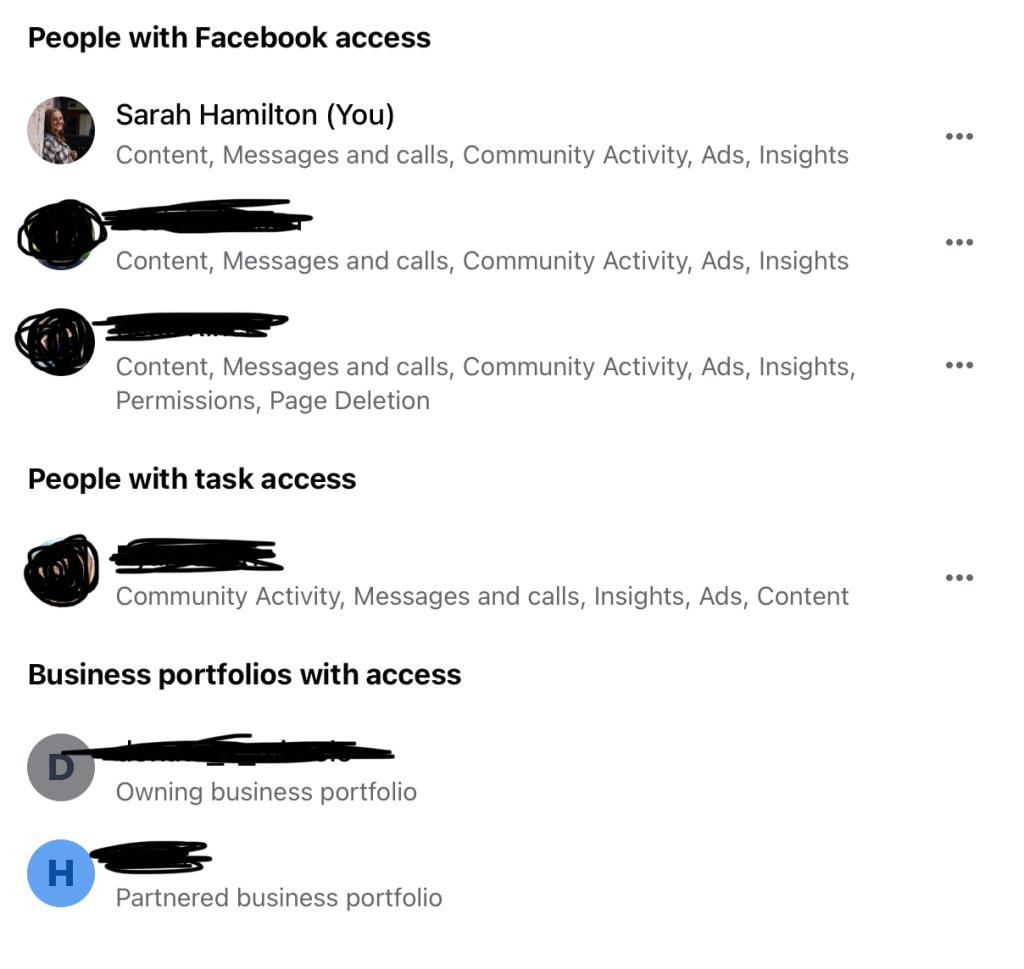
In the settings of your business page under Professional Dashboard you will find a section that says “Page Access.” From there you will be able to assign certain roles as you need.
Between Facebook and Meta Business Suite you will be able to give access to your page, schedule posts, and build your organic audience with ease.
Importance of Business Portfolios
Now is the important information for social media managers who are responsible for multiple clients. It is a good rule of thumb to ensure each of your clients has a Business Portfolio with all of their assets linked together. This will not only make it easier for you to track and manage multiple clients, but also ensure that each business has their own ad account that will keep their personal information private from your agency or yourself(if you are a freelancer). It’s also important to note that if you are managing multiple clients, you need a business page and portfolio yourself in order to do this properly.
A business portfolio through Meta is going to provide each business with a “business ID” which will help provide access to others on your team and keep all your clients information separate. Now, it’s important to note that business portfolios and assets can only be created and accessed through Meta Business Suite on a desktop browser.
If you or your client does not have a business portfolio linked to their business page follow these steps:
- Login to http://www.business.facebook.com with the personal Facebook account login information for the creator of the business page.
- Click the drop down menu in the top left corner that shows your accounts.
- At the bottom of that drop down click on “create business portfolio.”
- Follow the prompts and proceed to connect your accounts to your portfolio.
- Once complete, click the drop down menu again and click the settings icon next to your new business portfolio.
- Click on “Pages” on the menu on the left side of the screen.
- Add your business page following the prompts ahead to have it added to your business portfolio.
Once you ensure that your client has a business portfolio, you will then be able to share access to their assets to your agency and then yourself and anyone else that may be helping with the social media. Once you give access to your teammates they will then be able to access the pages from their phones, tablets, or desktops.
Ads Center Management
After creating a business page, a business portfolio, and providing access to those who need it you are ready to start branching out and creating paid advertisements that will be shared across platforms. There are several different ways you can create and share paid advertisements on behalf of your clients but for privacy reasons, I recommend ensuring that each of your clients has their own separate Meta Ad Manager Account.
If you are in a similar position as me, I found that a lot of my clients had no idea what an Ad Account was because they either hadn’t done paid ads before or just paid for the ads through their personal account(each personal account automatically has one ad account). It’s important when onboarding clients to help walk them through the ad account creation process. It’s doesn’t take very long but doing this will ensure the correct payment information is entered and kept private, your client will receive Meta Ad Receipts to their email, and allow you to run ads for multiple clients at once without accidentally charging one card for all the ads.
Each ad account can only use one payment method at a time so if you used your personal ad account and were running three ads for three different clients, it would only charge one credit card for all of the ads and entirely overcharge one client. Thus, it becomes very important for each client to have their own ad account to share and pay for ads.
Creating an Ad Account

When it comes to creating a Meta Ads Manager Ad Account, a lot of businesses might assume they already have one. I hate to be the bearer of bad news but unless they went through a desktop browser to create it, then the only ad account they have is the personal account of whoever created the page.
While that may work fine for a small business who is doing all their own advertising, a marketer with several clients is going to need to ensure that each clients ad account is separate from one another as to not confuse payment information.
The first thing you or client will need to do is head to http://www.business.facebook.com and login in through the owner of the business pages account(this will be their personal login information for Facebook that is connected to the business page).
Once there, you’ll click on the drop down menu on the top left corner of the screen and click the settings icon next to your business portfolio.
After that you will click on “Ad Accounts” located on the menu on the left side of the page. Finally, you will click the “+Add” button on the screen and click on “Create New Ad Account.” You will then be prompted to enter in your business name, follow the prompts, enter your payment information(make sure to put your business card in), and click done.
Now you have an ad account specifically for your business page that is connected to your portfolio and platform accounts.
Sharing Assets
If a client has followed these steps correctly(or you assisted them) then you should now be able give access to you or members of your team to manage ads on the ads account.
Navigate to the “Partners” button on the left side menu, still on the business page owners account. From there you will click “Share Assets” and then click “Ad Accounts.” Next you will enter in your business ID(If you are dealing with multiple clients you MUST have a business page and portfolio of your own in order to have an ID and gain access to these assets!) and turn on the buttons for content, ad accounts, and managing ads.
Now you have access to your clients ad account and platforms(all assets) and can navigate through your own login information to assign certain team members to that account.
Following these steps will ensure client confidentiality of their credit card information and have insights specifically for the ads that are being ran through their account.
Once your business page has access to your clients assets you can navigate to “Ad Accounts,” click on a specific clients account, and tap “Assign People.” From there you can assign your profile and any team members profiles to that Ad Account so they will be able to access it on desktop, tablet, or mobile.
Conquering Meta Business Platforms
Now that you have successfully completed all the steps involving a business page, portfolio, and ad account you can successfully manage multiple clients at once and with ease. If you are a small business owner just starting your venture into social media, setting all this up now can prevent a lot of hassle in the future if you need to give an employee, agency, or freelancer access to these features.
If you have any questions over Meta Business Suite or Ads Manager don’t hesitate to reach out!
 Hamilton Communications, LLC
Leave a comment